



Asana is an incredibly powerful tool, but its rights and permissions can get very granular. But figuring out the exact impact of every single setting can be complex.
Luckily, our amazing colleague Thaïssa has quite some of time to investigate all these complex configurations, so you don’t have to!
Grab a cup of coffee, and let’s dive into it. 🙂
Why Asana Rights and Permissions Matter
When you run a business, data security and clear workflows are everything. You want your team to have exactly the access they need to do their jobs, nothing more, and nothing less.
If permissions are too loose, important tasks might get deleted by accident. If they are too strict, your team hits roadblocks and productivity drops.
Because Asana is so detailed, understanding the exact boundaries of a “Viewer” versus an “Editor” can be tricky. Thaïssa mapped out every single scenario visually so we could finally put the guesswork to rest.
The 3 Main Areas Investigated
To make this guide easy to digest, Thaïssa broke down her massive investigation into three highly specific areas:
- Permissions of collaborators on tasks
- Permissions of project members on tasks
- Permissions on projects as a whole
1️⃣ Permissions of Collaborators on Tasks
First, we looked at “Collaborators.” These are people who are invited to view or work on a specific task, but they aren’t full members of the project.
0. The setting
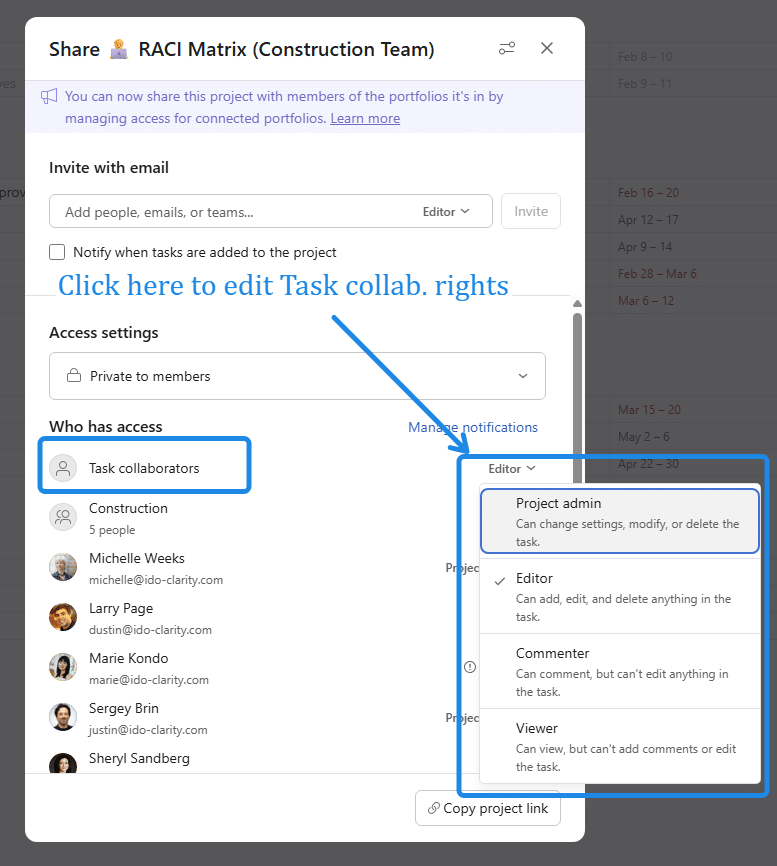
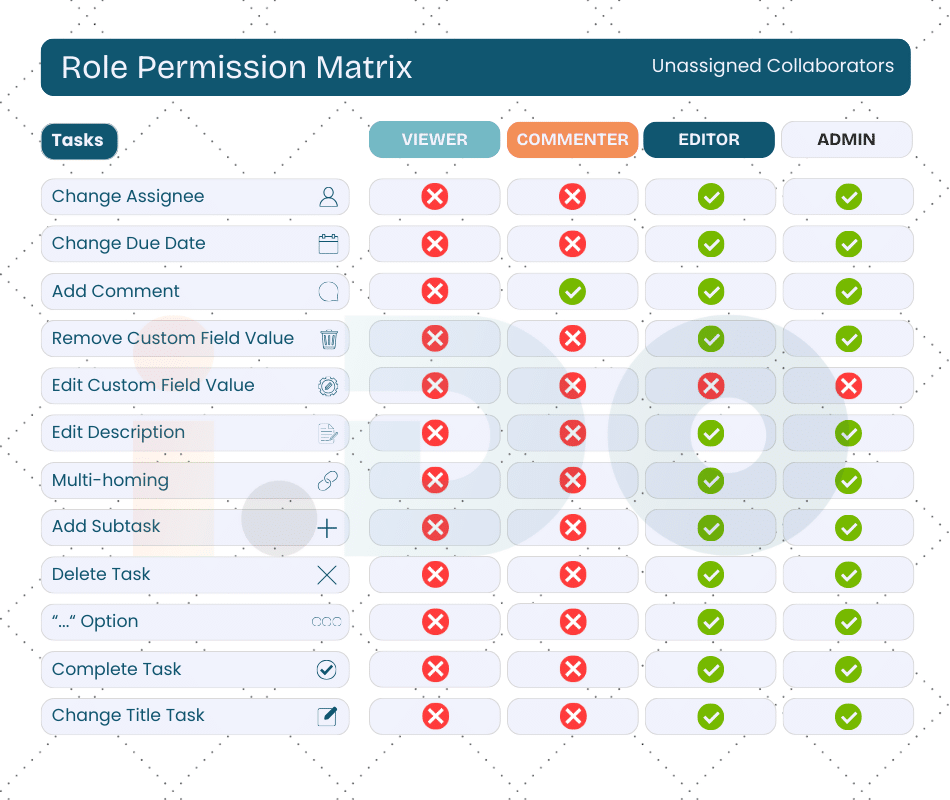
1. Unassigned Collaborators
If they aren’t assigned to the task, Viewers and Commenters are heavily restricted (shown as a wall of red X’s in our visual matrix). They cannot change due dates, edit descriptions, or modify custom fields.
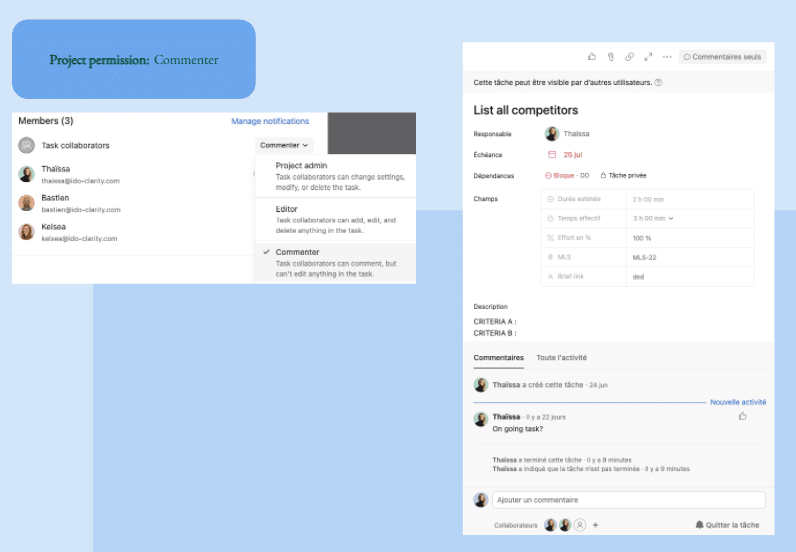
Example in Action: The Unassigned Commenter
Let’s say you invite a colleague from another department to review a task. You need their feedback, but you definitely don’t want them accidentally changing your due dates or messing with your custom fields.
By giving them the Commenter role (as an unassigned collaborator), their view looks exactly like the screenshot below. The core task details are locked down and un-clickable. However, the comment box at the bottom remains wide open. They can safely leave their thoughts without altering the structure of your work!
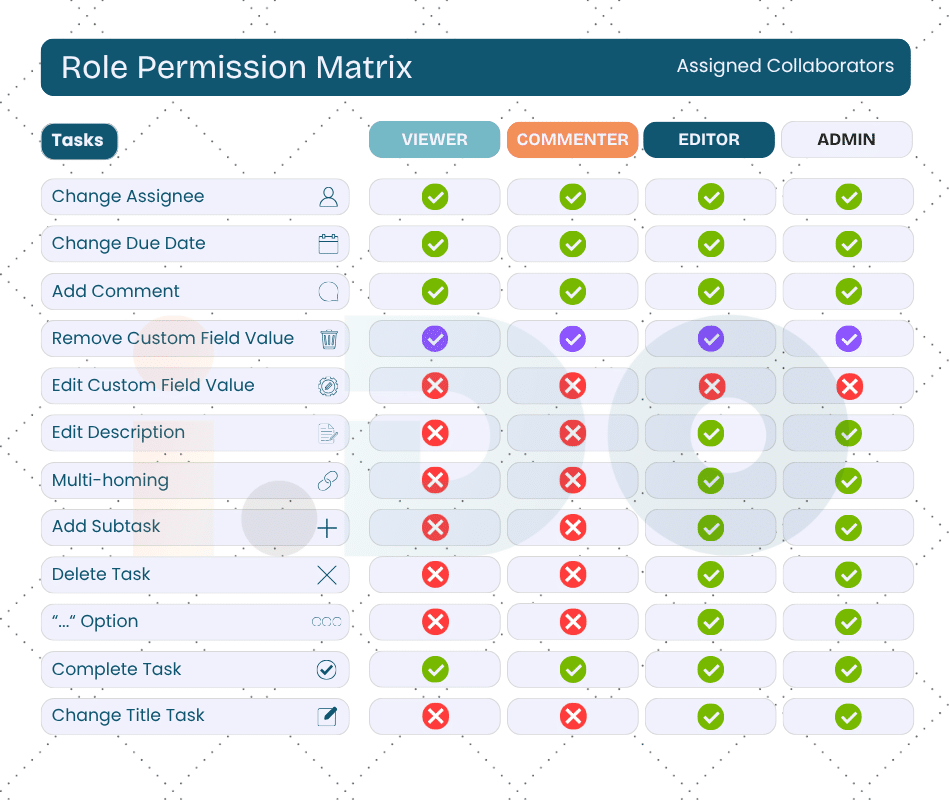
2. Assigned Collaborators
Once assigned, their rights shift slightly. As the matrix shows, they get green checkmarks for things like changing assignees and due dates, giving them just enough access to complete their specific job without compromising the whole task structure.
However, be careful with the “Purple line”, as that means Assigned Collaborators are technically capable of removing the Custom Field value, which could be a risk. But the event (them removing the value) will be stored in the logs, and visible in the Comment (view “All activity”).
Example in Action: The Assigned Editor
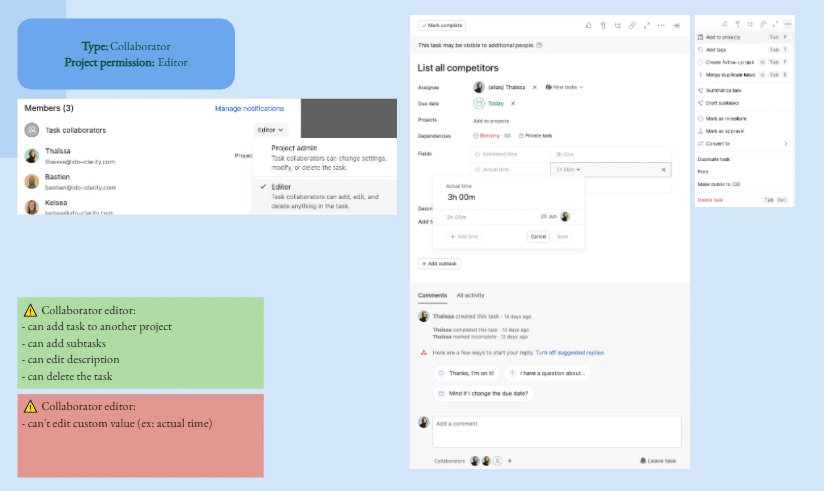
Let’s imagine you assign a specific task to a trusted freelancer. You want them to have the freedom to manage their work, so you give them the Editor role as an assigned collaborator.
As you can see in the screenshot below, this gives them a ton of flexibility. The green box highlights that they can add subtasks, rewrite the description, or even multi-home the task into another project.
But notice the red box! Even with Editor access, a task collaborator cannot edit custom field values (like tracking “actual time” spent). This is a brilliant safety feature, ensuring your reporting data and project metrics stay completely untouched even when you hand off the heavy lifting to someone else.
If you want that user to edit fields, invite him/her to the project.
2️⃣ Permissions of Project Members on Tasks
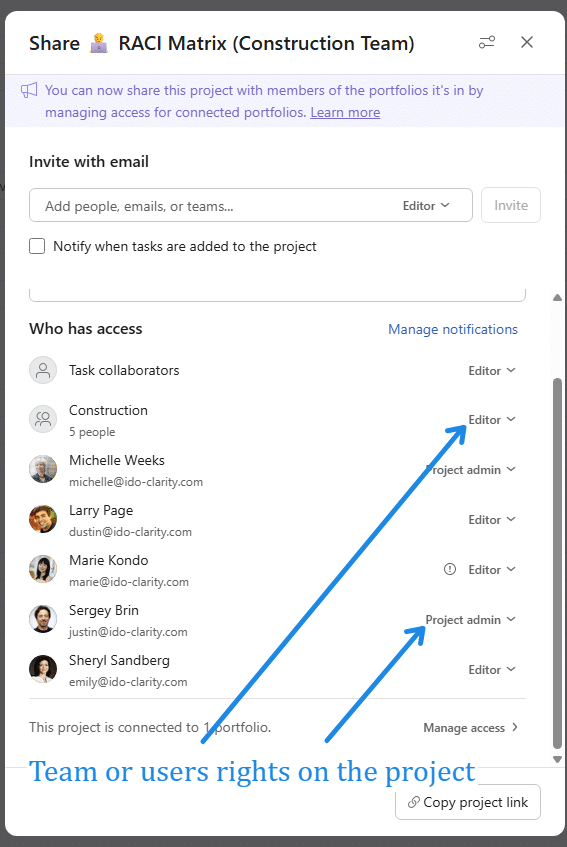
Next, we explored full “Project Members.” These are the users who have been invited to the entire project space. Because they live inside the project, their baseline rights are different from a standard task collaborator. And their rights will vary based on if they are assigned on the task, or not.
0. The setting
1. Unassigned Project Members
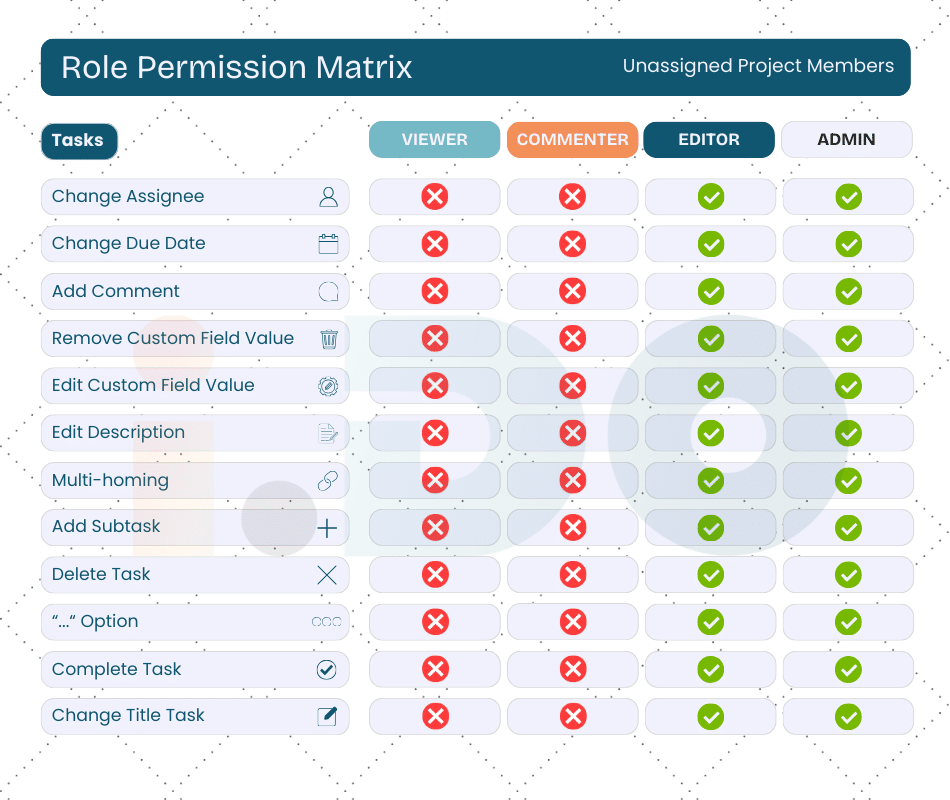
When project members are not assigned to a specific task, their access is very clear-cut. As you can see in our investigation, Viewers and Commenters are strictly limited, while those with “Editor” or “Admin” access have a sea of green checkmarks. They can multi-home tasks, add subtasks, and edit descriptions freely.
Example in Action: The Unassigned Project Admin
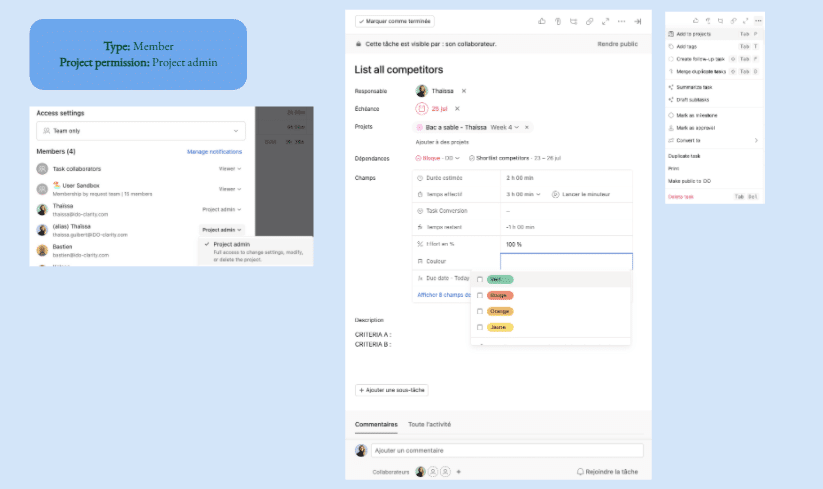
Let’s look at the ultimate backstage pass. Imagine you are a manager overseeing a large campaign. You aren’t assigned to every individual task, but you occasionally need to jump in to update a task, correct a Custom Field, or adjust a timeline.
In the screenshot below, you can see a Project Member with Project Admin permissions looking at a task they are not assigned to. Because they hold that high-level project role, the entire task is completely unlocked for them. They can easily click into custom fields (like the color-coded dropdown shown) and make updates on the fly. There’s no need to assign themselves to the task first, they have the power to keep the project moving seamlessly!
2. Assigned Project Members
Once a project member is assigned to a task, things open up. Even a “Viewer” gains abilities like changing due dates and completing tasks. However, in our matrix for Assigned Project Members, you will spot a purple checkmark under the Viewer’s ability to add a comment.
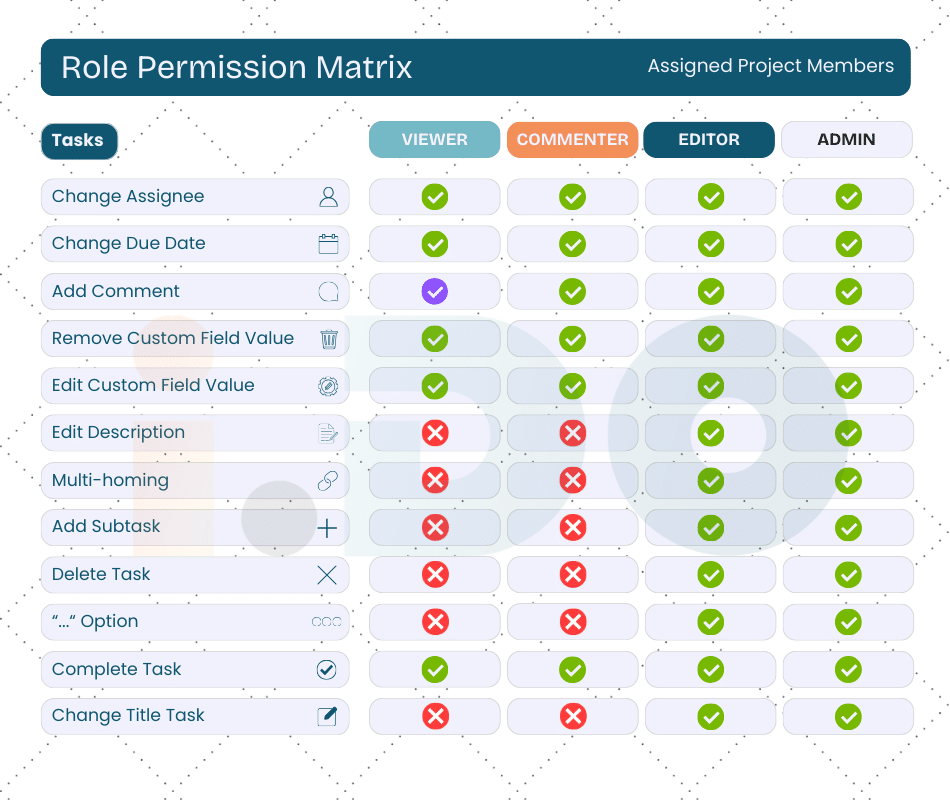
What does the purple checkmark mean? It means Yes, they can, but we feel it shouldn’t be allowed. It’s a quirk in the system to watch out for if you are trying to enforce strict read-only access!
Example in Action: The Assigned Viewer
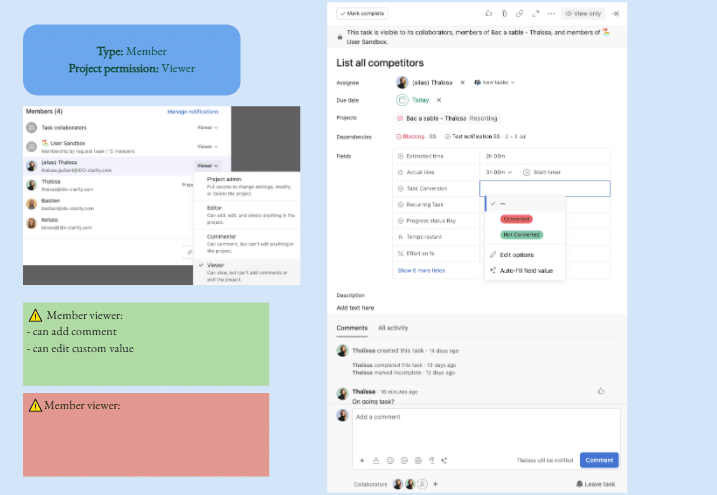
Let’s say you invite a stakeholder to your project as a “Viewer.” You just want them to look around and monitor progress, right? But then, you assign them to a specific task so they get a notification or know it’s their turn to review.
Look what happens in the screenshot below! Because they are now an assigned Project Member, their permissions temporarily expand. As the green box highlights, they can suddenly edit custom field values and drop comments in the chat.
This is exactly where that “purple checkmark” we mentioned comes into play. They are technically just a project Viewer, but assigning them to the task gives them a backdoor to interact. If you truly want strict read-only access, be very careful who you put in that “Assignee” slot!
3️⃣ Projects Permissions
Finally, we zoomed out to the macro level: the Project itself. This dictates who can change the actual structure of your workspace.
0. The Setting
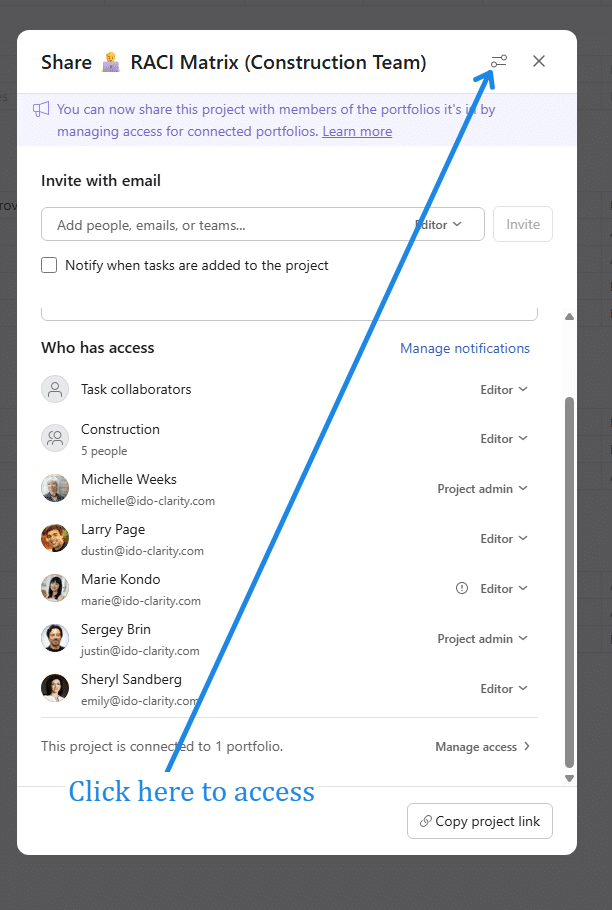
1. The Matrix
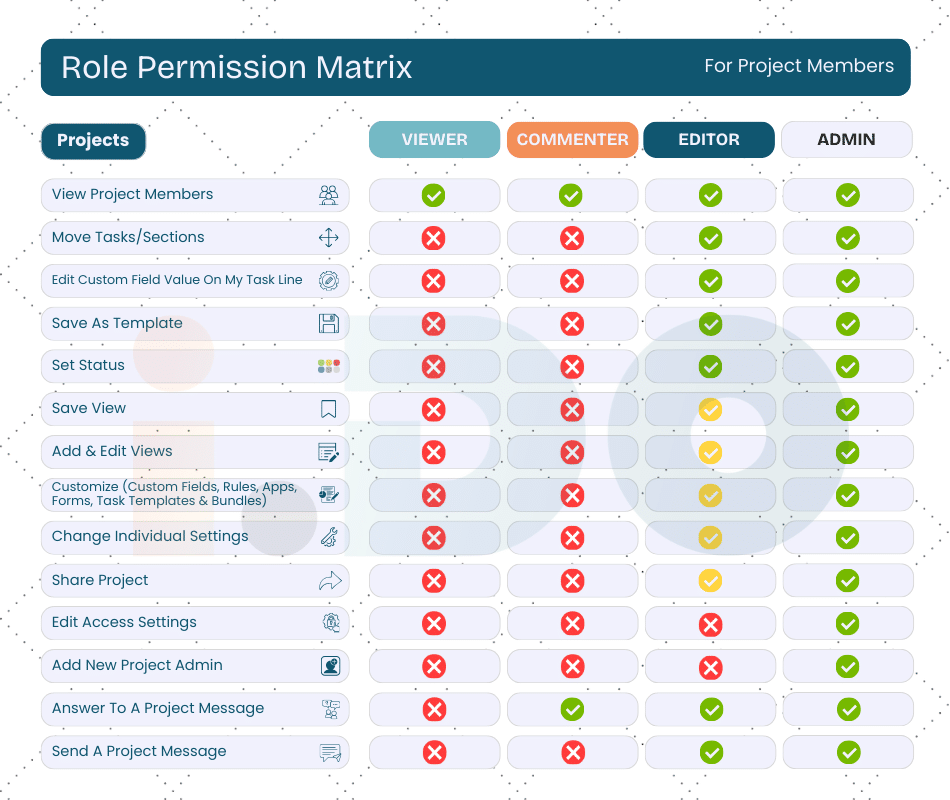
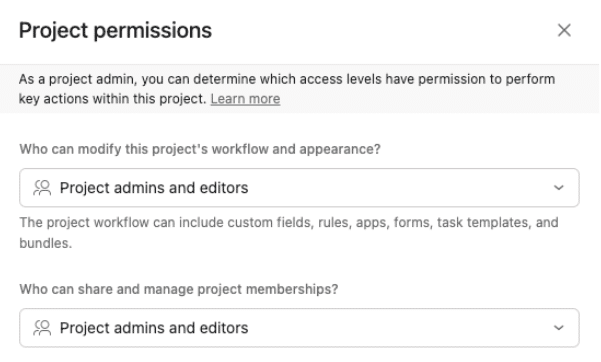
Views and Workflows (fields, forms, rules…): Only Editors and Admins can save new project views, share projects, or customize fields, rules, and forms. In our project matrix, you’ll see yellow checkmarks for Editors here.
What does the yellow checkmark mean? It means “Yes, but only if editors are included in the project permissions.
You must allow editors to manage these settings; otherwise, they could be blocked! But note that by default for a new project, the Project permissions are generally “admins and editors” (except if managed by a template configured specifically to “Project admins only”).
Example in Action: The Project Editor (and the Exclamation Marks!)
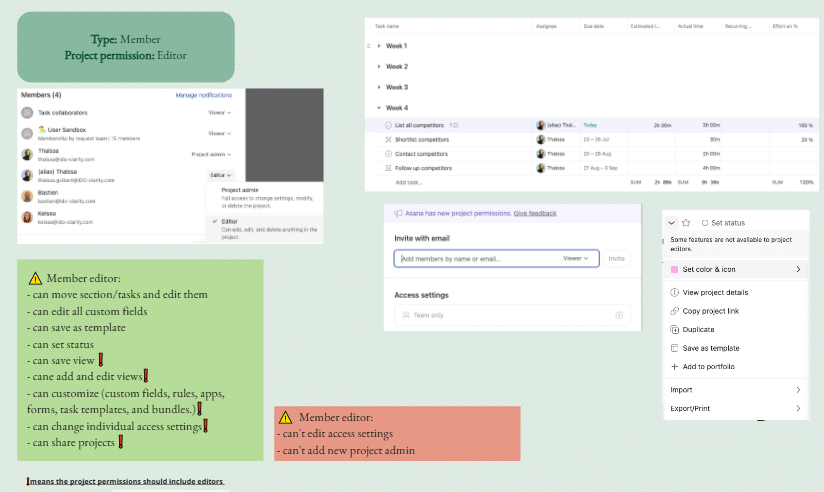
Let’s imagine you want to empower your team lead to build custom workflows, so you give them the Editor role for the whole project. You might assume they can immediately start creating new custom fields and saving new board views for the team.
Not quite! Look closely at the green box in the screenshot below. Yes, they can move tasks around, set statuses, and edit existing fields. But notice all those red exclamation marks (❗️)? Those represent the “yellow checkmarks” from our matrix!
That symbol means they can customize fields, rules, and views only if an Admin has explicitly gone into the core project settings and given Editors that right. If that switch isn’t flipped, those features stay locked. And as the red box at the bottom clearly shows, no matter what, an Editor can never change access settings or add a new Project Admin.
🚀 Ready to Master Your Workspace?
Navigating Asana’s granular settings doesn’t have to be a nightmare. Thanks to Thaïssa’s hard work, you now have a clear roadmap of exactly what every role can and cannot do.
But you don’t have to implement all of this alone. If you want to make sure your workspace is secure, optimized, and built for scale, we are here to help.
Would you like us to help you audit your current Asana setup? Contact i.DO today and let our team of experts build the perfect, frictionless workflow for your business!