



The short answer
Teams often automate an action but still rely on someone to remember when to restart it. With Asana AI Teammates, you can give a clear instruction about what to do and when to return, without necessarily making the task recurring or assigning it to the Teammate. The Teammate needs an initial trigger, the right access, and an explicit follow-up instruction.
Recurring work does not always require a recurring task
A recurring task is useful when the same work must happen on a fixed schedule forever, such as a weekly status report.
But many workflows are not that simple. The next action may depend on what happens in the task:
- Check again in four hours.
- Follow up next Monday if nobody has replied.
- Review the request at month-end.
- Return 30 days after delivery.
- Post an update every Friday.
For these situations, the cadence can be part of the instruction. During an execution, an AI Teammate can schedule its own follow-up and return to continue the work. The task itself can remain a normal task.
That distinction gives teams a more flexible way to manage follow-ups, coordination, and operational checks in Asana.
How to set up a recurring instruction
1. Give the AI Teammate access
The Teammate can only work with the Asana tasks and projects it is allowed to see.
For public work, access is generally available. For private tasks, projects, or teams, add the AI Teammate as a member or collaborator. Its access level also determines what it can do: view information, post comments, or create and update work.
2. Trigger the Teammate once
A recurring instruction still needs an initial trigger. You can start the work by:
- Assigning the task to the AI Teammate.
- Mentioning it in a task comment.
- Commenting on a task where it is already a collaborator.
- Using an Asana rule or form to trigger it automatically.
The task does not have to have a recurring due date. The AI Teammate does not have to be the task owner either, as long as it was triggered through a valid method and has sufficient access.
3. State the action, timing, condition, and output
Avoid instructions such as “check later” or “keep an eye on this.” They leave too much room for interpretation.
Use a format like this:
Check this project every Friday at 9:00. Summarize what changed during the week, flag overdue tasks, and post the update as a comment. If nothing changed, say so clearly.
A strong recurring instruction answers four questions:
- What should the Teammate do?
- When should it return?
- What condition should change its next step?
- Where should it share the result?
4. Add context to the instruction
The Teammate works better when the task contains the information it needs: the relevant project, the people involved, the definition of “overdue,” and the format expected for the update.
Keep the instruction close to the work. A task description or comment gives the Teammate access to the surrounding task history, comments, dates, owners, and project structure.
5. Review the first result
Before expanding the pattern, check that the Teammate:
- Returned at the intended time.
- Looked at the right work.
- Applied the conditions correctly.
- Posted the result in the right place.
- Took only the actions its access level allows.
A short review at the beginning prevents a vague instruction from becoming a repeated source of noise.
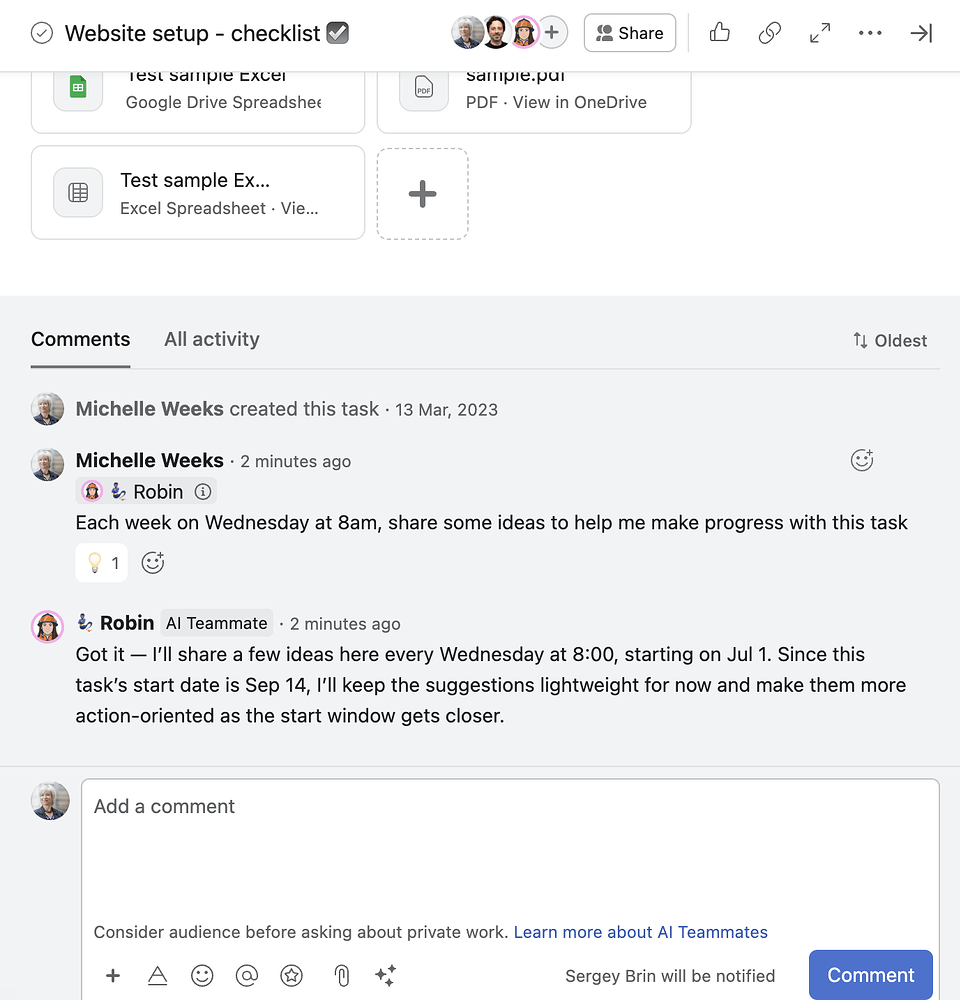
A practical example
Imagine a task called Client onboarding: signed agreement.
You can instruct the AI Teammate:
Check this task in four hours. If the signed agreement is attached, notify the owner and create the next setup task. If it is not attached, follow up tomorrow at 9:00 and post a reminder in this task.
This is a normal task, not a recurring task. The instruction tells the Teammate when to return and what to do in each situation.
The value is not just the reminder. The Teammate returns to the existing context instead of asking someone to rebuild the workflow from scratch.
Five useful applications
1. Approval follow-ups
Ask the Teammate to check whether a decision has been made and notify the right owner if approval is still pending.
2. Project status digests
Schedule a weekly summary of completed work, overdue tasks, open decisions, and items waiting on another team.
3. Document chasing
Have the Teammate check for a missing brief, signed document, or attachment and follow up when it is not available.
4. Onboarding nudges
Use timed follow-ups to keep a new client, employee, or internal request moving through the next step.
5. Work hygiene checks
Ask the Teammate to identify tasks with no assignee, no due date, or a blocked status and post the list where the team can act on it.
When to use a recurring task instead
Self-scheduled follow-ups are useful when the next action depends on the state of the work or when the timing is part of an ongoing thread.
Use a recurring task when the schedule is fixed and predictable, such as:
- A daily backlog review.
- A weekly team report.
- A monthly operational checklist.
Both approaches are valid. The practical question is whether the recurrence belongs to the task itself or to the Teammate’s next action.
Common mistakes to avoid
- Using vague timing: Replace “later” with a specific day, time, or interval.
- Leaving the output undefined: Say whether the Teammate should comment, notify an owner, create a task, or update a field.
- Ignoring access control: A Teammate cannot work on private content it cannot see.
- Over-automating a simple schedule: Use a recurring task when the work is rigid and predictable.
- Skipping the first review: Validate the initial result before applying the pattern to a critical workflow.
FAQ
Does the task need a recurring due date?
No. For a self-scheduled follow-up, the task can have a normal due date or no recurring schedule. A recurring due date remains a good option for fixed, repeatable work.
Does the AI Teammate need to be assigned to the task?
No. It can be triggered by an @mention, a comment on a collaborative task, a rule, or a form. It must still be triggered through a supported method and have access to the work.
Can an AI Teammate work in a private project?
Yes, if it has been explicitly added to the relevant private task, project, or team and the requesting user also has access. The Teammate cannot elevate its own permissions.
Should every recurring process use an AI Teammate?
No. Use the simplest reliable setup. A recurring task is often the clearest choice for a strict schedule. An AI Teammate adds value when the work requires context, conditions, summaries, or a follow-up action.
Start with one follow-up
Pick one task where the next step is easy to describe. Give the AI Teammate access, trigger it once, and write the action, timing, condition, and output in plain language.
That is enough to test the model: the task holds the context, while the Teammate returns when the work needs attention.
For the current product details, see Triggering AI Teammates in the Asana Help Center and Understanding access control for AI Teammates.
You can also read the original Agents Playbook #3 forum article by Arthur.
i.DO is an Asana Solutions Partner helping operations teams, PMOs, and leaders turn Asana into a more reliable system for work management.